
 Share
Share
 Tweet
Tweet
 Share
Share
 Share
Share
 Share
Share
GIMP - Free Open Source Image Editor for Photos & Design
GIMP, short for GNU Image Manipulation Program, is a free and open-source image editing application designed for photo enhancement, graphic design, digital artwork and creative image manipulation. It provides a broad collection of professional-style tools without requiring a paid subscription, making it a popular option for photographers, designers, illustrators, students and everyday users who want greater control over their images.
From simple tasks such as cropping and resizing to more advanced work involving layers, masks, selections and color adjustments, GIMP provides a flexible workspace that can be adapted to different creative workflows. It is primarily desktop software rather than a traditional browser-based editor and is available for major computer operating systems.
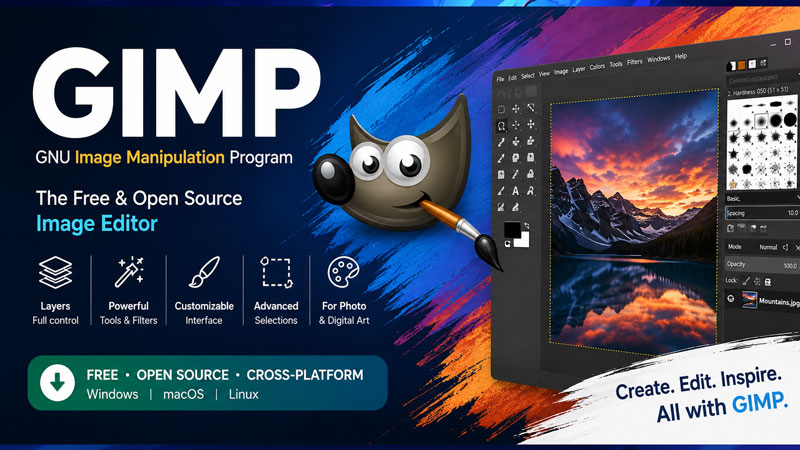
What Is GIMP?
GIMP is an open-source image manipulation program built for editing raster graphics and creating digital visual content. Instead of limiting users to a small set of basic filters, it includes tools for detailed retouching, image composition, drawing, text, transformations, color correction and layer-based editing.
Because the software is open source, users can access its core functionality without purchasing a license. Its flexible design also makes it suitable for people who want to customize their editing environment or extend the application with additional resources and plugins.
What Can You Do With GIMP?
GIMP can support many common creative tasks, ranging from quick image fixes to more complex design projects. Its toolset is broad enough for personal projects, web graphics, photography and digital artwork.
- Edit photos: Crop, rotate, resize and improve images with color, brightness and contrast adjustments.
- Retouch images: Remove unwanted objects, repair imperfections and refine specific areas of a photograph.
- Create graphics: Combine text, shapes, photos and visual elements for banners, thumbnails and web assets.
- Work with layers: Organize individual elements separately for more controlled and non-destructive workflows.
- Design digital artwork: Use brushes, paths, selections and painting tools for illustrations and creative compositions.
- Prepare images for the web: Resize, optimize and export graphics in widely used image formats.
Key Features of GIMP
Layer-Based Image Editing
Layers allow different parts of a composition to remain separate while they are edited. Users can combine photographs, graphics, text and effects without permanently merging every element into one image during the editing process.
Selections and Masks
Selection tools make it possible to isolate specific areas of an image before making changes. Masks provide additional control by allowing effects and adjustments to be applied only where they are needed.
Photo Retouching Tools
GIMP includes tools useful for correcting imperfections, adjusting colors, sharpening details and refining photographs. This makes it suitable for portrait retouching, product images and general photo enhancement.
Filters and Visual Effects
Users can apply a variety of filters and effects to transform the appearance of an image. These tools can be useful for sharpening, blurring, stylizing, correcting colors or creating more experimental artwork.
Customizable Workspace
The interface can be organized to fit different editing habits. Frequently used panels, brushes and tools can be arranged so photographers, illustrators and designers can build a workflow that suits their projects.
Plugin and Extension Support
GIMP can be expanded through plugins, scripts, brushes and other community-created resources. This gives experienced users additional ways to customize features and automate parts of their workflow.
Why Choose GIMP?
One of the biggest advantages of GIMP is that it provides a substantial image editing toolkit without a recurring software fee. This makes it attractive to users who need more functionality than a basic image editor but do not necessarily want a subscription-based creative suite.
- Free to use: No recurring subscription is required to access its main editing features.
- Open-source software: The project is developed openly and supported by a broad community.
- Advanced editing controls: Layers, masks, paths, selections and filters support detailed editing work.
- Flexible for different projects: GIMP can be used for photography, graphics, digital art and web imagery.
- Customizable: Users can adjust the workspace and expand functionality with additional resources.
- Cross-platform: GIMP is designed for major desktop operating systems, including Windows, macOS and Linux.
How to Start Editing Images With GIMP
- Install GIMP: Download the appropriate version for your operating system and complete the installation.
- Open an image: Import an existing photograph or create a new blank canvas for a design project.
- Choose your editing tools: Use crop, selection, brush, text, transform and color tools depending on the task.
- Organize with layers: Add separate layers for text, graphics, effects or image elements to keep the project manageable.
- Preview your changes: Zoom in to check details and adjust opacity, colors, positioning or effects as needed.
- Save your project: Keep an editable working copy when you want to preserve layers and other project information.
- Export the final image: Create a shareable image file in a common format such as PNG or JPEG.
GIMP for Photo Editing
Photography is one of the most common uses for GIMP. Users can improve exposure, adjust color balance, crop compositions, remove small distractions and prepare images for websites or social platforms. More experienced editors can combine selections, masks and layers to make precise adjustments to individual regions of a photograph.
This flexibility means the same application can handle both fast corrections and more detailed retouching workflows.
GIMP for Graphic Design
GIMP is also useful for creating digital graphics such as website banners, thumbnails, promotional images, simple advertisements and social media visuals. Designers can combine images with text, apply effects and work with multiple layers to create structured compositions.
Although dedicated vector design applications may be better suited to certain logo or illustration workflows, GIMP remains a versatile choice when raster graphics and photo-based design are the main focus.
GIMP for Digital Art
Artists can use GIMP's brushes, layers, paths, transformations and blending controls for painting and illustration. Brush customization can help create different drawing styles, while layers allow sketches, colors, shading and effects to be kept separate during the creative process.
Its open ecosystem also gives users access to additional brushes, patterns and creative resources developed by the community.
Is GIMP an Online Image Editor?
GIMP itself is primarily a desktop application rather than a browser-based image editor. Users normally install it on a compatible computer and edit their files locally. This distinction is important because some websites describe GIMP as an “online editor,” even though the official application does not require users to upload their images to a web editor before working on them.
For users specifically searching for GIMP online, the term often refers to learning about GIMP, finding its editing tools or looking for browser-accessible alternatives. The standard GIMP experience remains centered on installed desktop software.
Benefits of Using a Desktop Image Editor
A locally installed editor can be useful when working with large files or projects that contain many layers. Images can remain on the user's computer during the editing process, and access to editing features does not depend entirely on having a browser tab open.
This workflow can be especially convenient for photographers and designers who regularly work with multiple images, high-resolution files or ongoing projects.
Who Is GIMP Best For?
- Beginners: Users who want to learn image editing without paying for professional software.
- Photographers: People who need tools for photo correction, retouching and composition.
- Graphic designers: Creators producing banners, web graphics, thumbnails and marketing visuals.
- Digital artists: Illustrators who want customizable brushes and layer-based drawing tools.
- Students: Learners looking for a free tool for creative assignments and visual projects.
- Content creators: Users preparing images for websites, social media, videos and online publishing.
GIMP File Formats and Export Options
GIMP can work with many commonly used image formats. Users can keep an editable project file while working and export finished graphics into formats suited to websites, sharing or printing.
- PNG: Useful for web graphics and images that require transparency.
- JPEG: Commonly used for photographs and compressed web images.
- GIF: Suitable for certain lightweight web graphics and simple animations.
- TIFF: Often used when preserving higher image quality is important.
- GIMP project format: Useful for maintaining editable layers and project data for future changes.
Tips for Getting Better Results With GIMP
- Keep important elements on separate layers whenever possible.
- Save an editable project copy before exporting the final image.
- Use masks when you want greater control over localized adjustments.
- Choose image dimensions based on where the final graphic will be used.
- Zoom in when performing detailed retouching or edge corrections.
- Learn keyboard shortcuts for tools that you use frequently.
- Export a separate final file rather than overwriting your editable project.
GIMP FAQ
Is GIMP completely free?
Yes. GIMP is free and open-source software, allowing users to access its image editing features without purchasing a recurring subscription.
Can beginners use GIMP?
Yes. Beginners can start with simple operations such as cropping, resizing, adding text and adjusting colors before gradually learning more advanced features such as masks, paths and layer-based compositing.
Can GIMP be used on Windows, macOS and Linux?
GIMP is designed to run on major desktop operating systems, making it accessible to users across Windows, macOS and Linux environments.
Can GIMP edit photos professionally?
GIMP includes many advanced tools for photo retouching, color adjustments, masking and compositing. Whether it meets a particular professional workflow depends on the features, file formats and integrations required for that project.
Does GIMP support layers?
Yes. Layers are one of GIMP's core editing features and allow users to keep different image elements separate while building more complex compositions.
Can I create transparent images with GIMP?
Yes. Transparency can be used when creating assets such as web graphics, overlays, icons and other designs that require transparent backgrounds.
Is GIMP available as a mobile app?
GIMP is primarily designed as desktop software. Users who need image editing directly on a smartphone or tablet may prefer applications specifically designed for mobile devices.
Does GIMP require an internet connection?
Once installed, many standard editing tasks can be performed locally on the computer. Internet access may still be useful for downloading updates, documentation, plugins or additional resources.
GIMP: A Flexible Free Image Editing Solution
GIMP continues to stand out as a powerful option for users searching for a free image editor with more control than basic photo editing applications. Its combination of layers, masks, filters, retouching tools and customizable features makes it useful across many creative workflows.
Whether the goal is to improve a photograph, build a website graphic, create digital artwork or prepare an image for online publishing, GIMP gives users a broad editing environment without requiring a paid software subscription.
Note: GIMP is primarily downloadable desktop software, not an official browser-only image editor. Users searching for “GIMP online” should distinguish the official GIMP application from unrelated third-party web services that may use similar terminology.